Yes, the multi-color syncing feature is available in WiZ app version 1.30.4-257 and works on light firmware version 1.36.1 or above.
If you're syncing lights that have individually addressable segments or zones, (i.e. Gradient Floor Light, Gradient Light Bars, RGBIC Lightstrip, Neon Flex Strip, Dual zone Pole Floor Light, etc...), you can choose to let the light sync with one color at a time or multiple colors at a time.
When setting up multi-color syncing, try to match your light's individually-addressable zones or segments to one of the 8 areas on the TV screen that is closest to the segment's physical location.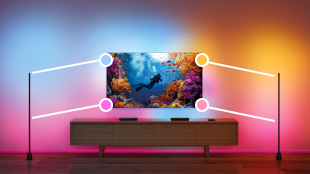
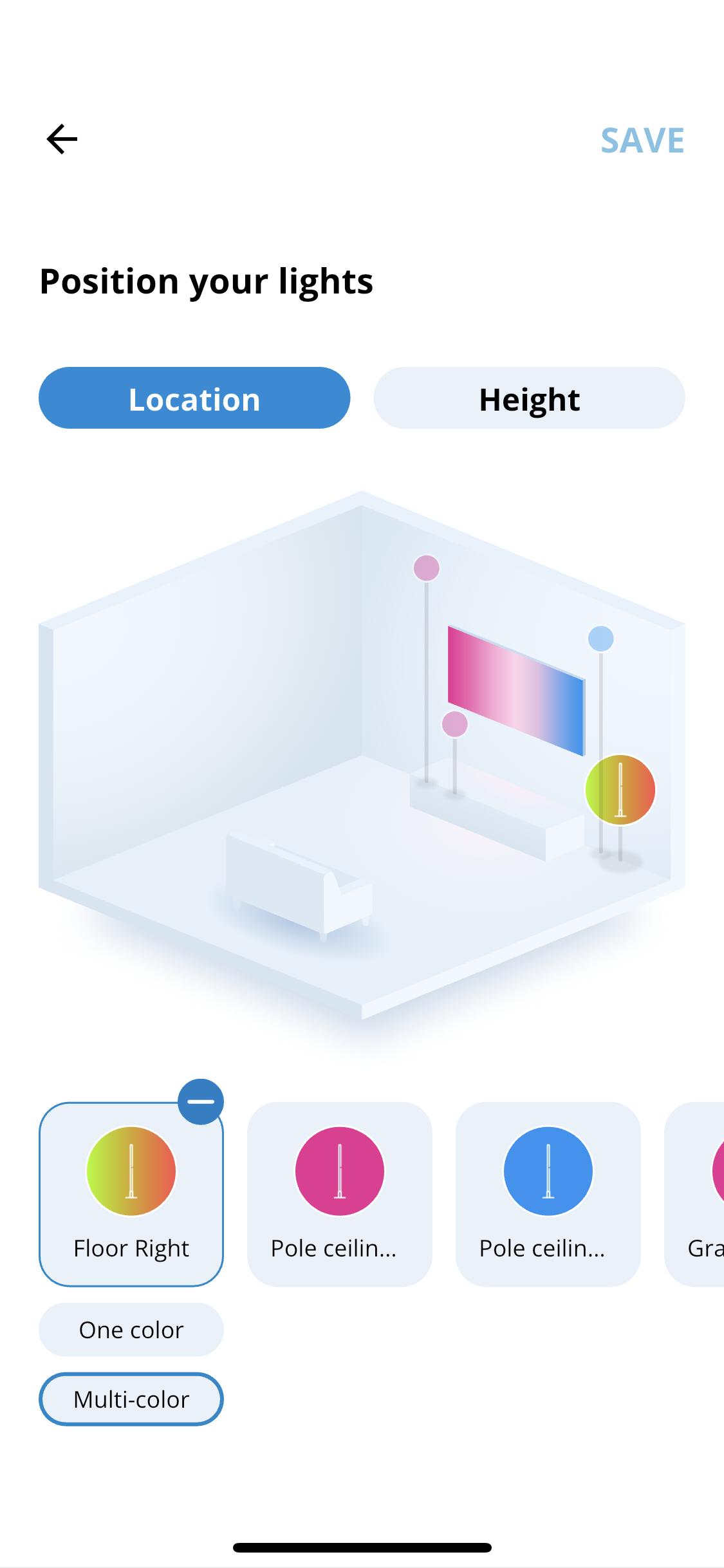
- Go to Setting in the TV sync page
- Enter TV area configuration
- Tap on the card of a light that support multi-color syncing and you'll see two button appear below the card: One-color and Multi-color. Note: if you don't see these options, make sure if your light is running firmware version 1.36.0 or above.
- Tap on Multi-color to open the multi-color setting page
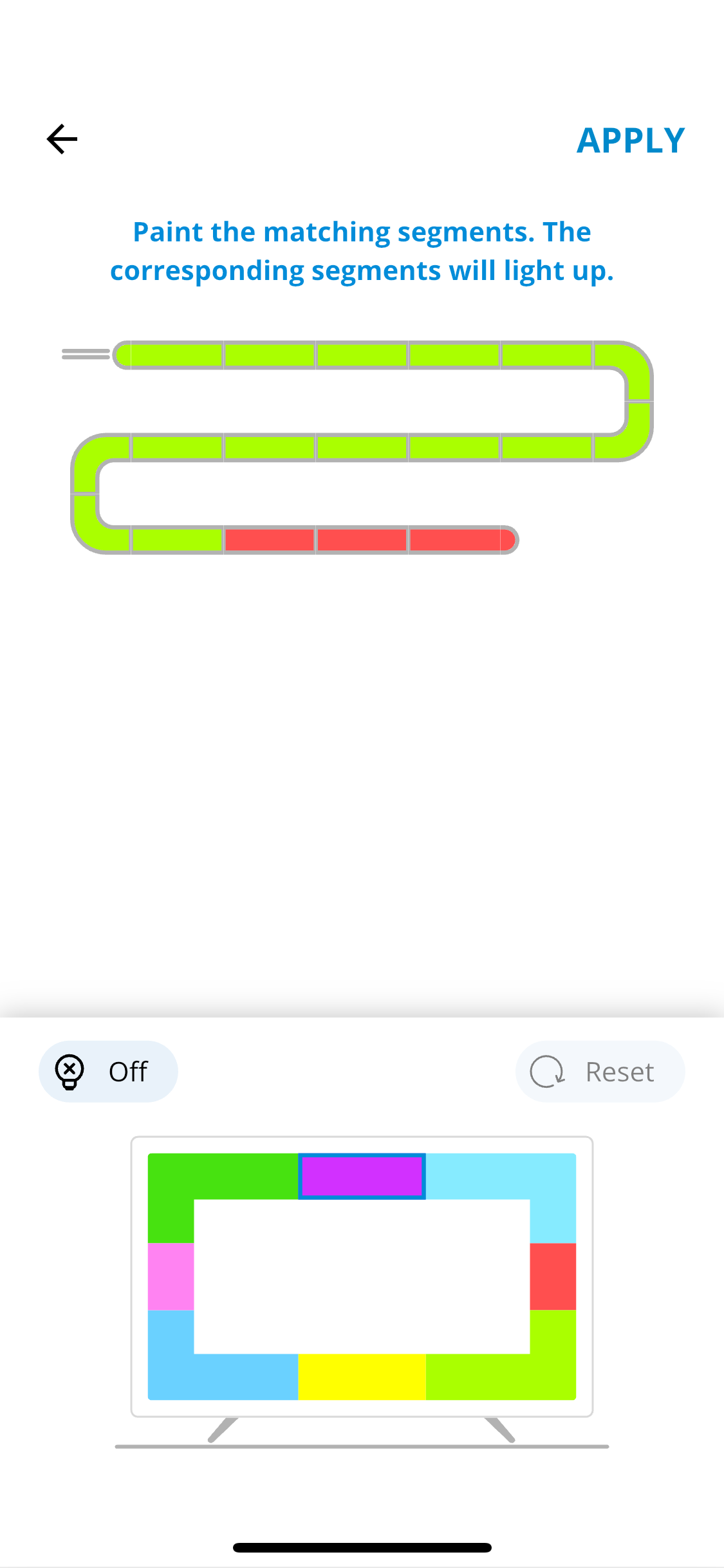
- Tap to select one of the 8 color areas on the TV screen at the bottom of the app screen
- Tap on the linear light drawing at the top of the app screen to paint the matching segments with the selected color. Note: the corresponding segments on the actual light will light up so you can better identify the given segments position and length.
- Repeat steps 5 and 6 to match eash segment with an area on the TV screen
- You can also select Off to assign some segments to remained turned off during TV sync
- Tap on APPLY, then SAVE to save your configuration.
Note:
For Gradient (RGBIC) light, the linear light drawing starts from the side with the power cable. It may appear upside down depanding on your product's installation.