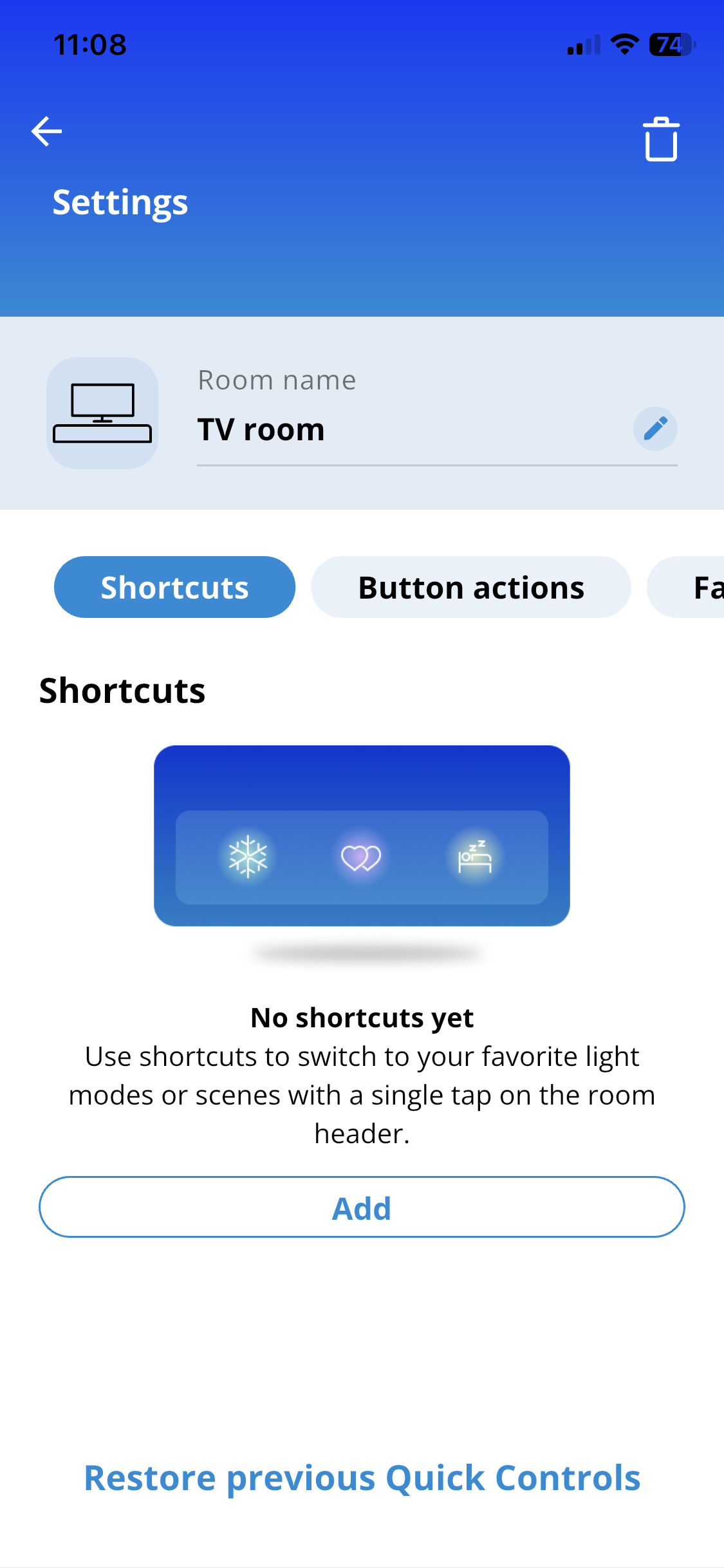
Shortcuts are a quick and easy way to control the lighting for an entire room. Simply tap on any Shortcut icon in the app to apply that light mode or Scene to every compatible light in the whole room.
Where can I find my Shortcuts?
Your favorite Shortcuts are displayed in the blue area located directly below the room name on your WiZ app's room screen.
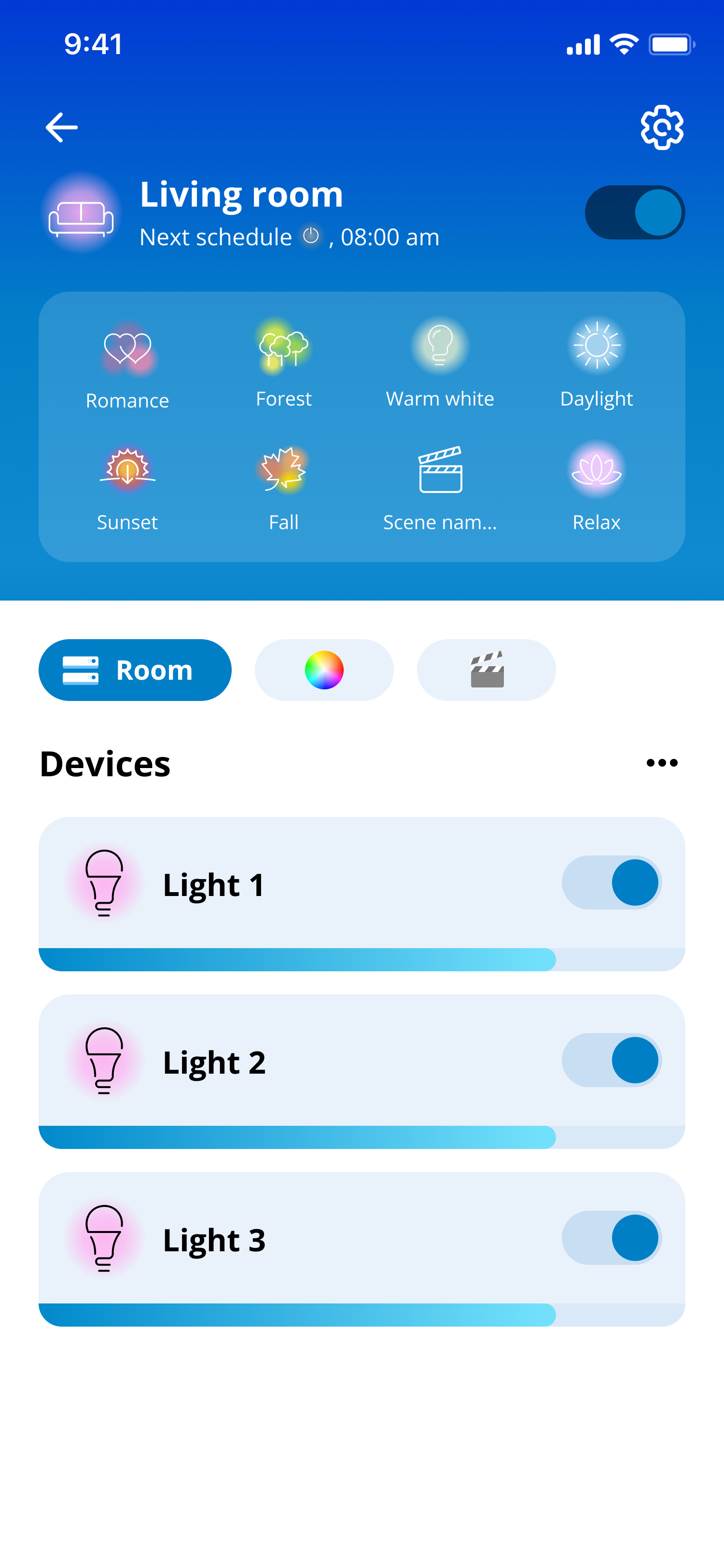
How do I set a Shortcut action?
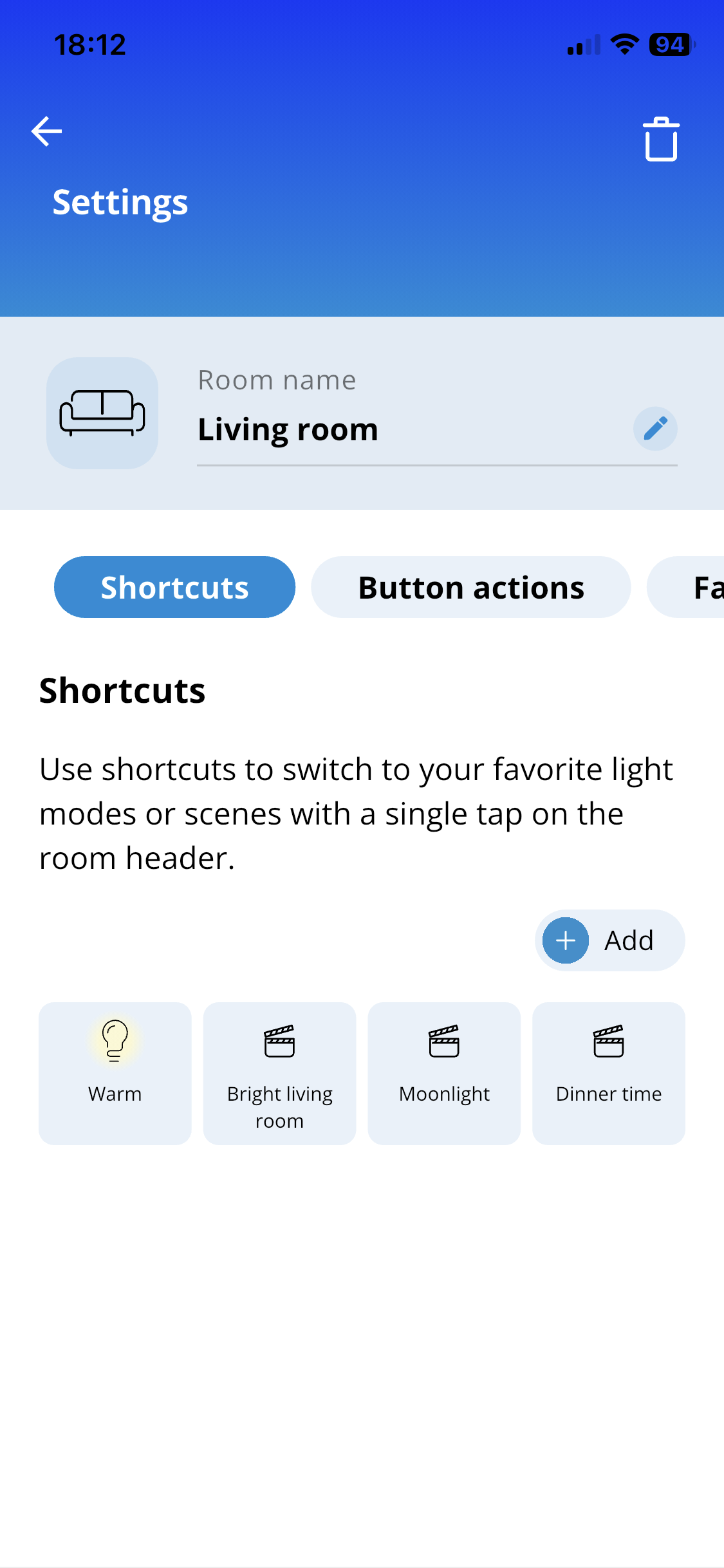
- Go to the Room Setting page > Shortcuts
- Tap on + Add to add a new Shortcut
- You can also tap on a Shortcut card to edit the action
You can select a light mode and customize its brightness and speed (if applicable) so it activates exactly how you like it. You can also choose a Scene you have already created in the room to be triggered as a Shortcut action.
How many Shortcuts can I create?
You can create up to 8 Shotcuts for each room, giving you plenty of options for different times of day, moods, or activities.
**What happened to the old "Room Favorite" feature?
The previous "room favorite" feature has been renamed to "Button Actions." Don't worry—your existing setups are not lost!
If you want to reuse the 4 room favorites you set up in the previous version of the app, you can easily sync them over:
Go to the Room Setting page > Shortcuts
Tap on "Restore previous Quick Control." at the bottom of the screen
Your previous 4 actions will automatically sync over and populate your new Shortcuts area.